Lab: Docker Compose and a Nextcloud NAS. PLO: PLO2 / PLO1. Points: 7.
Overview
The campus media unit has outgrown shared folders. Four people need one place for the 6,000-asset catalogue, the photo originals and the captions, reachable from a browser on campus and from a phone off campus. They also want the copy to survive a disaster: a lost file should be a restore, not a reshoot.
The one big idea for this session: a container is disposable; its state is not. You can delete and recreate the application container as often as you like, because the application is an image and every piece of state it needs lives outside the container, on a storage volume you control. Get that boundary wrong and recreating the container silently erases the work. Get it right and the deployment becomes something you can replace, back up and move.
The lab builds exactly that: a two-volume mirrored NAS mounted at /srv/nas, a four-service Docker Compose stack running Nextcloud on top of it, a Cloudflare-proxied hostname, an object-storage backup, a restore drill, and a deliberate failure in which the NAS is not mounted.
Lesson
A virtual machine is not a container
A container is a process (or a small group of processes) started by the kernel with its own view of the filesystem, network and process table. It is not a small virtual machine. There is no guest kernel to boot, so it starts in about a second; the price is that it shares the host kernel and therefore the host's security boundary.
That distinction explains what the lab can and cannot teach. The container gives you packaging: the application, its libraries and its configuration travel together as an image, and the same image runs on a laptop, a Droplet or a different provider. It does not give you isolation from a hostile tenant, and it does not make data durable. Durability is the job of storage, which is the real subject of this session.
The image, the container and the volume contract
Three objects, three lifetimes:
| Object |
What it is |
Lifetime |
If you delete it |
| Image |
A read-only template: filesystem layers plus the starting command |
Until you delete it |
Re-pull it from the registry |
| Container |
One running instance of an image, plus a thin writable layer |
Until you recreate it |
Anything written only to the writable layer is gone |
| Volume or bind mount |
Storage attached from outside the container's writable layer |
Independent of the container |
The data is gone only if you delete the volume |
This is the whole session in one table. The Nextcloud container writes its database, its configuration and its user files somewhere. If those paths are inside the container's writable layer, docker compose up --force-recreate destroys them. If they are bind mounts to /srv/nas, the container can be replaced forever and the data stays.
Docker offers two ways to attach outside storage. A named volume is a directory managed by Docker (the Caddy certificate store in this lab uses one). A bind mount maps a host path into the container, so you can see, back up and mount that path yourself. The NAS is a bind mount for exactly that reason: the data must be visible to the backup tool and to the filesystem you repair when something goes wrong.
Compose is the deployment, written down
Docker Compose reads one YAML file that lists services, images, mounts, environment, health checks and start order. The file is the deployment: it is what you review, commit, diff between environments and hand to the next person. The running containers are a consequence of the file, not the source of truth.
Two details in the file carry the lesson:
volumes: - /srv/nas/nextcloud:/var/www/html/data puts the data on the NAS. The same applies to /srv/nas/config and /srv/nas/db. The Caddy certificate store is a named volume instead, because certificates are disposable: lose them and Caddy issues new ones.depends_on with condition: service_healthy makes Nextcloud wait for MariaDB and Redis to answer their health checks, not merely for their processes to exist. A process can be alive and useless; a health check tests the thing the next service needs.
Health checks are assertions made repeatedly. MariaDB's official script connects and asks whether InnoDB finished initialising. Redis answers ping. Nextcloud's check fetches /status.php and looks for "installed":true, which is a stronger claim than "the web server answered".
The mount is the state boundary
A mounted filesystem appears at a mount point. /srv/nas is that point in this lab. The device /dev/md1 is the mirrored array; /srv/nas is where the kernel exposes its contents.
The order matters: mount the array, then start the containers. Docker bind mounts do not care whether the source is a real filesystem. If /srv/nas is an ordinary directory on the root disk because the array is not mounted, Docker mounts that empty directory into the container without complaint. MariaDB then initialises a new database there, and Nextcloud sees an empty configuration directory and installs a new, empty instance. Nothing errors. That silent success is the failure this lab reproduces on purpose, and the reason the first diagnostic is findmnt /srv/nas, not docker compose logs.
nofail in /etc/fstab is a deliberate trade: without it, a missing array stops the boot entirely; with it, the machine boots and the application can start into the empty-directory failure. The lab chooses availability with a detectable wrong state over an unbootable host. Production teams choose one or the other explicitly.
Mirroring: RAID is availability, not backup
RAID1 writes every block to both volumes. If one volume fails, the array keeps serving from the other, and replacing the failed disk rebuilds the mirror. That is availability: it protects against a disk dying.
RAID1 does not protect against the failures that matter most to a media unit: a deleted file, a bad upload, a corrupted database, a stolen server, a mistaken docker compose down -v. Every write is mirrored, including the mistake. The array lives in the same Droplet as the application, so it shares the Droplet's fate. The backup to object storage is the protection against those failures, and only a restore you have actually performed proves it works.
The lab therefore separates two proofs: the mirror survives a container replacement, and the backup brings a deleted file back. They answer different questions.
Exposure: one port, one proxy, one trusted name
The Droplet publishes only 443. Caddy, the reverse proxy, terminates TLS on that port and forwards plain HTTP to the Nextcloud container on the private Compose network. Nextcloud itself publishes nothing. The DigitalOcean Cloud Firewall admits SSH from one address and 443 from everywhere; everything else is dropped before it reaches the host.
Caddy uses tls internal, which means a certificate from Caddy's own local authority. Browsers do not trust it, and that is acceptable here because the certificate the browser sees belongs to Cloudflare, not to Caddy. Cloudflare's SSL/TLS mode Full encrypts edge-to-origin but does not validate the origin certificate. Full (strict) would reject Caddy's self-signed leaf. The mode is a security decision, and this lab uses the looser one on purpose, because the origin is a single-tenant Droplet on a private network path; a production service would install a publicly trusted or Cloudflare Origin certificate and use strict mode.
The DNS record is proxied (the orange cloud). Proxying is what makes Cloudflare terminate the browser connection, so dig nas.<root> returns Cloudflare addresses rather than the Droplet's IP. The Droplet's firewall still sees Cloudflare's connections, not the student's, which is why the record and the firewall are configured together.
Backup and restore
Nextcloud's own backup order is the one that survives a crash:
- Put the instance in maintenance mode, so no client writes during the copy.
- Copy the data directory and the configuration directory.
- Dump the database with a consistent snapshot (
--single-transaction), because copying a live database file is not a backup.
- Copy the dump.
- Leave maintenance mode.
The copy goes to R2 through rclone, configured entirely by environment variables so no credential file is written to disk. R2 is private, versioned by policy if the team wants it, and billed for storage rather than egress; the synthetic catalogue is a few kilobytes, so the lab spend is zero.
A backup is a claim until a restore proves it. The drill deletes one uploaded photo, fetches the backed-up object, uploads it again, and compares SHA-256 hashes. The hash equality is the evidence; "the file is in the bucket" is not.
Reading the failure
When the stack starts with /srv/nas unmounted, four observations identify the problem without guessing:
findmnt /srv/nas prints nothing, so the mount point is not a mount point.lsblk still shows md1 and the two volumes, so the storage exists; it is simply not attached to that path.docker inspect ... .Mounts shows the source as /srv/nas/..., which looks correct. Docker did what it was told; the path was wrong before Docker saw it.- The instance id from
occ config:system:get instanceid differs from the one recorded at first boot. A different instance id means a different installation, not a different view of the same one.
The recovery is to mount the array and recreate the containers. A plain restart is not enough: the container's mount namespace was built when the container started, so the correction requires a new container. This is the session's second lesson about state: the mount namespace is state too.
Portability and its price
The Compose file, the Dockerfile behind the image and the backup script are the portable parts. Moving this stack to another provider means running the same Compose file on a machine with a mounted data directory and pointing DNS at it. What does not move automatically is the identity and network layer: the firewall rules, the token scopes, the DNS record and the certificate mode are provider-specific. That is why the research question asks which deployment abstraction keeps the service portable without giving up managed operations: the more the platform does for you, the more of its vocabulary you must translate when you leave.
Check yourself
- A container is recreated and its data survives. Which two things made that true?
- The stack starts with the NAS unmounted and reports no error. Why does Nextcloud install itself instead of failing?
- RAID1 mirrors every write. Why is that not a backup?
- Cloudflare is in Full mode, not Full (strict). What would break under strict, and what would you install to fix it?
- Name one thing that does not move when you move this stack to another provider.
สรุปภาษาไทย
แนวคิดหลักของบทนี้คือคอนเทนเนอร์เป็นสิ่งที่สร้างใหม่ได้เสมอ แต่ข้อมูลสถานะไม่ใช่ อิมเมจคือแม่แบบแบบอ่านอย่างเดียว คอนเทนเนอร์คืออินสแตนซ์ที่กำลังทำงาน และชั้นข้อมูลที่เขียนได้จะหายเมื่อสร้างคอนเทนเนอร์ใหม่ ดังนั้นข้อมูล Nextcloud ทั้งไฟล์ การตั้งค่า และฐานข้อมูลจึงถูกผูก (bind mount) ไปยัง NAS ที่เมานต์ไว้ที่ /srv/nas ซึ่งเป็นอาร์เรย์ RAID1 จากสองวอลุ่ม RAID1 ให้ความพร้อมใช้งานเมื่อดิสก์ลูกหนึ่งเสีย แต่ไม่ใช่การสำรองข้อมูล เพราะทุกรวมถึงการลบผิดพลาดถูกทำสำเนาไปทั้งสองลูก การสำรองข้อมูลจริงคือการคัดลอกไปยัง R2 ด้วย rclone และการกู้คืนที่ทดสอบแล้วเท่านั้นที่พิสูจน์ได้ว่าใช้ได้ ผลลัพธ์ที่สำคัญคือ แฮชของไฟล์ต้องเท่าเดิมหลังการกู้คืน และหมายเลขอินสแตนซ์ต้องกลับมาเป็นค่าเดิมหลังการกู้ระบบจากความล้มเหลวที่ไม่ได้เมานต์ NAS
中文总结
本章的核心概念是:容器总是可以重建,但状态数据不行。镜像是只读模板,容器是正在运行的实例,而可写的数据层在重建容器时会消失。因此 Nextcloud 的文件、配置和数据库都被绑定挂载(bind mount)到挂载在 /srv/nas 的 NAS 上,这是一个由两个卷组成的 RAID1 阵列。RAID1 在一块磁盘损坏时提供可用性,但不是备份,因为一切——包括误删除——都会被复制到两块盘上。真正的备份是使用 rclone 复制到 R2,而且只有经过测试的恢复才能证明它可用。关键结果是:恢复后文件的哈希必须保持不变,并且在未挂载 NAS 的故障恢复后,实例编号必须恢复为原来的值。
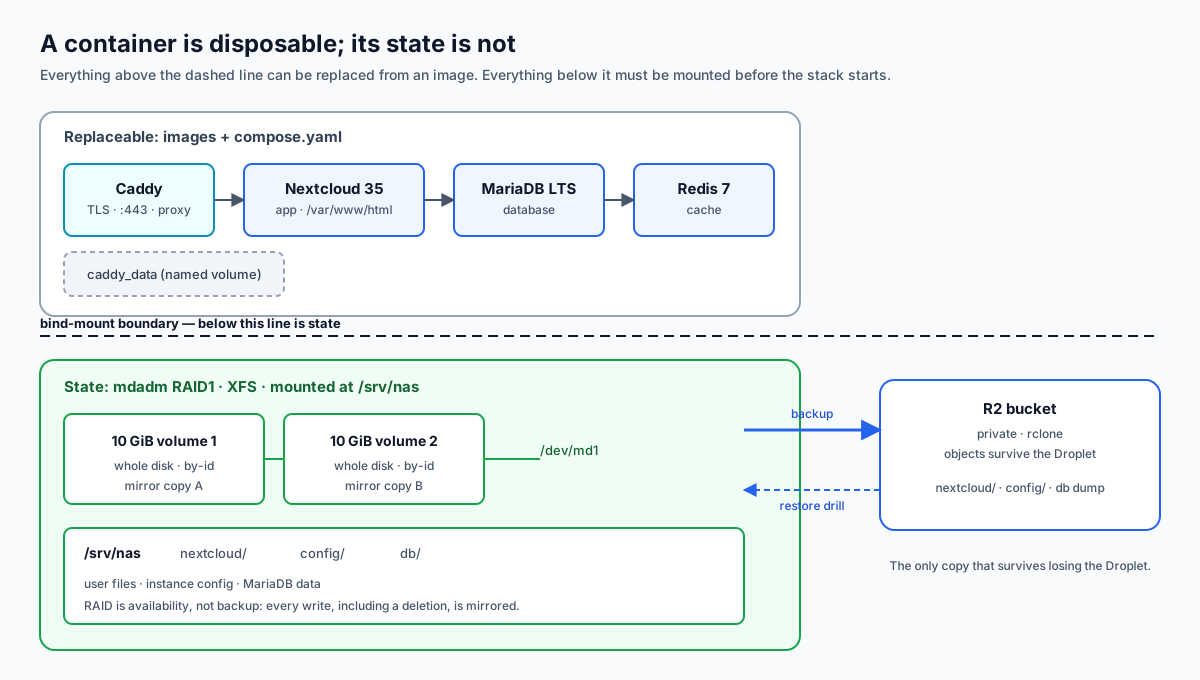
Figure 5.1 — the state boundary. The upper layer holds the replaceable parts: the four containers, their images and the Compose file. The lower layer holds the state: the mirrored /dev/md1 array formatted XFS, mounted at /srv/nas, with nextcloud/, config/ and db/ inside it. The Caddy certificate store is the one named volume that stays on the root disk, because certificates are disposable. The arrow to the right is the only copy that survives losing the Droplet: the private R2 bucket.
| Layer |
Object |
Survives container recreate? |
Survives Droplet loss? |
| Application |
Caddy, Nextcloud, MariaDB, Redis containers |
Yes — replaced from their images |
No — rebuilt from Compose |
| Configuration |
compose.yaml, Caddyfile, .env |
Yes — files on disk |
No — keep them in version control |
| State |
/srv/nas (RAID1 → XFS) |
Yes |
No |
| Disposable state |
caddy_data named volume |
Yes |
No |
| Backup |
private R2 bucket |
Yes |
Yes |
Reading the figure as a chart: anything above the dashed boundary can be deleted and rebuilt; anything below it must be mounted before the stack starts; the arrow crossing the boundary is the only path that escapes the machine.
Prerequisite: The DigitalOcean account, project and SSH key from Session 1; an Active Cloudflare zone with a Zone:DNS:Edit token for the Nextcloud hostname. Set it up in Session 0: Accounts.
Lab — Docker Compose and a Nextcloud NAS
Time: 120 minutes — 10 setup, 80 core, 20 evidence, 10 teardown. The Nextcloud image pull is the long pole; start it before the concept recap ends.
Prerequisite: the S1 account, the S3 volume experience and the S4 zone. Your root domain's Cloudflare zone is Active, and you have a Zone:DNS:Edit token. You need doctl, ssh, scp, dig, curl, jq and rclone on your laptop.
You need to know: an image is a read-only template; a container adds a thin writable layer that disappears when the container is recreated; a bind mount puts a host path into the container so the data outlives it. A health check tests whether a service is usable, not whether its process exists. RAID1 mirrors every write, so it is availability rather than backup. Cloudflare in Full mode encrypts to the origin without validating the origin certificate.
Safe-data acknowledgement: I have read the lab safe-data policy. I will use only the course-supplied synthetic media and will not upload real personal media to any cloud service.
Reference run. Every command below is the sequence the verified runner executes; run.sh, remote.sh and COMMANDS.md in this folder are that record. Type each command yourself and read its output — do not run the script as your lab.
Task
Build a two-volume mirrored NAS at /srv/nas, run Nextcloud 35 with MariaDB, Redis and Caddy as a four-service Compose stack on top of it, publish it behind a proxied nas.<root> record, back it up to a private R2 bucket, prove a restore, start the stack with the NAS unmounted, diagnose and recover, then tear everything down.
Step 0 — Pre-flight
Confirm the tools, the zone and the zone's SSL mode.
doctl account get
Shows the active DigitalOcean account and its limits. If this fails, doctl auth init and paste a token with Droplet, volume and firewall scopes.
Panel: DigitalOcean Control Panel → Account.
doctl compute image list --public --format Slug --no-header | grep -qx rockylinux-10-x64
Exits 0 only if the Rocky Linux 10 image slug exists in SGP1. No output means success.
dig NS <root> +short
Returns Cloudflare nameservers such as phil.ns.cloudflare.com. — proof the zone is Active and can hold the proxied record.
Panel: Cloudflare dashboard → your zone → Overview.
curl -s -H "Authorization: Bearer $CLOUDFLARE_TOKEN" \
  "https://api.cloudflare.com/client/v4/zones?name=<root>" | jq -r '.result[0].id'
Returns the zone id used by every DNS call. The token needs Zone:Read for this call and Zone:DNS:Edit for the next one.
Step 1 — Firewall
Admit SSH from your address and 443 from everywhere; drop the rest.
MYIP=$(curl -s https://api.ipify.org)
Records your public address. SSH will be allowed only from it.
doctl compute firewall create --name "course-<id>-s5" \
  --inbound-rules "protocol:tcp,ports:22,address:$MYIP/32 protocol:tcp,ports:443,address:0.0.0.0/0" \
  --outbound-rules "protocol:tcp,ports:0,address:0.0.0.0/0 protocol:udp,ports:0,address:0.0.0.0/0 protocol:icmp,ports:0,address:0.0.0.0/0" \
  --tag-names "week:5"
Creates a cloud firewall attached to every Droplet tagged week:5. Only 22 and 443 are reachable from outside; outbound traffic is unrestricted.
Panel: Networking → Firewalls → Create, then add the same two inbound rules and apply the tag week:5.
doctl compute firewall list --format ID,Name,InboundRules
Confirms the rules and the tag. Note the firewall id for teardown.
Step 2 — Two raw volumes
Create two 10 GiB volumes with no filesystem, so mdadm can own the whole disk.
doctl compute volume create "course-<id>-s5-nas1" --region sgp1 --size 10GiB --tag "week:5" --format ID --no-header
doctl compute volume create "course-<id>-s5-nas2" --region sgp1 --size 10GiB --tag "week:5" --format ID --no-header
Creates two block-storage volumes in SGP1. Omitting --fs-type is deliberate: a filesystem on the volume would hide the whole disk from mdadm.
Panel: Volumes → Create, 10 GiB, SGP1, tag week:5.
doctl compute volume list --format ID,Name,Size,Region,DropletIDs,Tags
Both volumes should show 10 GiB, sgp1 and no Droplet yet. A detached volume still bills.
Step 3 — Droplet with both volumes attached
doctl compute droplet create "course-<id>-s5" --image rockylinux-10-x64 \
  --size s-2vcpu-4gb --region sgp1 --ssh-keys <fingerprint> \
  --volumes <vol1-id>,<vol2-id> --tag-names "course:42-05-0112,week:5" --wait \
  --format ID --no-header
Creates the 2 vCPU / 4 GiB Droplet with both volumes attached at boot. Attaching at creation is what makes /dev/disk/by-id visible in the first boot.
Panel: Droplets → Create, Rocky Linux 10, SGP1, s-2vcpu-4gb, add both volumes under Add Block Storage, add the tag week:5.
doctl compute droplet get <droplet-id> --format PublicIPv4 --no-header
Returns the public IPv4 used by DNS and SSH.
Step 4 — DNS and SSL/TLS mode
Point a proxied record at the Droplet.
curl -s -H "Authorization: Bearer $CLOUDFLARE_TOKEN" \
  "https://api.cloudflare.com/client/v4/zones/$ZONE_ID/settings/ssl" | jq -r '.result.value'
Prints the zone's current SSL/TLS mode, for example strict. Record it: teardown restores this value after the lab's Full mode.
ZONE_ID=$(curl -s -H "Authorization: Bearer $CLOUDFLARE_TOKEN" \
  "https://api.cloudflare.com/client/v4/zones?name=<root>" | jq -r '.result[0].id')
curl -s -X POST -H "Authorization: Bearer $CLOUDFLARE_TOKEN" -H "Content-Type: application/json" \
  "https://api.cloudflare.com/client/v4/zones/$ZONE_ID/dns_records" \
  --data "{\"type\":\"A\",\"name\":\"nas\",\"content\":\"<droplet-ip>\",\"proxied\":true,\"ttl\":1}"
Creates the nas.<root> A record with the orange cloud on. proxied:true is what makes Cloudflare terminate TLS and forward to the origin.
Panel: DNS → Records → Add record, type A, name nas, IPv4 the Droplet address, Proxy status: Proxied.
dig +short nas.<root>
Returns Cloudflare anycast addresses, not the Droplet IP. That is the check that the record is proxied.
curl -s -H "Authorization: Bearer $CLOUDFLARE_TOKEN" \
  "https://api.cloudflare.com/client/v4/zones/$ZONE_ID/dns_records?name=nas.<root>" \
  | jq -r '.result[] | "\(.name) \(.type) proxied=\(.proxied)"'
Reads the record back from the API as evidence. The proxied=true field is the machine-checkable version of the orange cloud.
curl -s -X PATCH -H "Authorization: Bearer $CLOUDFLARE_TOKEN" -H "Content-Type: application/json" \
  "https://api.cloudflare.com/client/v4/zones/$ZONE_ID/settings/ssl" --data '{"value":"full"}'
Sets SSL/TLS mode Full: Cloudflare encrypts to the origin but does not validate Caddy's internal certificate. Full (strict) would reject it.
Panel only: SSL/TLS → Overview → Full. The API call above is the runner-verified path; the panel is the learner's path.
Step 5 — Reach the Droplet and install Docker
The verified runner imports a throwaway key for the run. If your S1 key is already registered, skip these three commands and pass its fingerprint to --ssh-keys in Step 3; the rest of the sequence is identical.
ssh-keygen -t ed25519 -N "" -C course-s5-nas -f .ssh/id_ed25519
Creates a disposable key pair for the run.
doctl compute ssh-key import course-s5-nas-key --public-key-file .ssh/id_ed25519.pub
Registers the public half with the account. The private half stays on the laptop.
doctl compute ssh-key list --format ID,FingerPrint --no-header | grep <fingerprint>
Confirms the key is registered and gives the fingerprint for --ssh-keys.
ssh -i <private-key> root@<droplet-ip> "mkdir -p /root/s5 /root/results"
Creates the project directory and the results directory on the Droplet before any file is copied.
scp -i <private-key> remote.sh compose.yaml Caddyfile .env.example \
  data/catalogue.json data/photo-01.jpg root@<droplet-ip>:/root/s5/
Stages the phased runner, the stack files and the synthetic upload on the Droplet. Your private key stays on the laptop.
ssh -i <private-key> root@<droplet-ip>
Connects as root. Keep this session open; the remaining commands run inside the Droplet.
dnf -y install dnf-plugins-core jq curl
Installs the repository tooling and jq, used to read JSON evidence.
dnf config-manager --add-repo https://download.docker.com/linux/rhel/docker-ce.repo
Adds Docker's RHEL repository. Rocky 10 uses the RHEL 9/10 repository; the RPMs are compatible.
rpm --import https://download.docker.com/linux/rhel/gpg
Imports Docker's signing key before the first install. On a fresh Droplet the image may still be running its own package transaction, which holds the RPM lock; retry the import after a few seconds if it reports a lock error.
dnf -y install docker-ce docker-ce-cli containerd.io docker-buildx-plugin docker-compose-plugin
Installs Docker Engine and the Compose plugin. There is no separate docker-compose binary; the plugin is invoked as docker compose.
dnf -y install iptables
Installs the user-space iptables. The Docker bridge driver programs NAT rules through it.
KVER=$(uname -r)
KVER=${KVER%.x86_64}
dnf -y install "kernel-modules-extra-${KVER}"
depmod -a
modprobe xt_addrtype
Installs the extra kernel modules that match the running kernel and loads xt_addrtype, which Docker's NAT rules require. DigitalOcean's Rocky 10 image ships a kernel whose module tree lacks the extras; without this, docker fails with Extension addrtype revision 0 not supported, missing kernel module?. The provider's kernel is part of the platform contract you have to reconcile with the software you install.
systemctl reset-failed docker
systemctl enable --now docker
Clears any failed start from the package installation, then starts Docker now and at boot.
docker version
docker compose version
docker version must show both a Client and a Server section; a Client-only output means the daemon is not running.
systemctl is-active firewalld
firewall-cmd --state
Records the host firewall state. The Rocky image ships firewalld inactive; the DigitalOcean Cloud Firewall filters in front of the host, so the host firewall is not the boundary in this lab.
dnf -y install rclone
Tries the distribution package. Rocky Linux 10 does not ship rclone in its enabled repositories, so this normally reports No match for argument: rclone; that is expected, not a failure.
curl -fsSL https://downloads.rclone.org/rclone-current-linux-amd64.zip -o /tmp/rclone.zip
dnf -y install unzip
unzip -q -o /tmp/rclone.zip -d /tmp/rclone
install -m 755 /tmp/rclone/rclone-*-linux-amd64/rclone /usr/local/bin/rclone
Installs rclone from the official static binary: download, unpack and place it on PATH. A static binary is the portable installation path when a distribution has no package.
rclone version
Prints the version. command not found means the binary was not placed on PATH.
Step 6 — The mirrored NAS
dnf -y install mdadm xfsprogs
Installs the array tool and the XFS formatter.
lsblk -o NAME,SIZE,TYPE,FSTYPE,MOUNTPOINT
Lists the two 10 GiB disks with no FSTYPE. If a filesystem is present, the volume was created with one and must be recreated.
ls -l /dev/disk/by-id/scsi-0DO_Volume_*
Shows the stable whole-disk names, for example scsi-0DO_Volume_course-<id>-s5-nas1. Use the whole disk, not a -part1 suffix; the prototype verified this.
Panel: Volumes → the volume → Attached to, where the device name is also listed.
mdadm --create /dev/md1 --level=1 --raid-devices=2 --run \
  /dev/disk/by-id/scsi-0DO_Volume_course-<id>-s5-nas1 \
  /dev/disk/by-id/scsi-0DO_Volume_course-<id>-s5-nas2
Creates the RAID1 array over the two whole disks. --run keeps it non-interactive when the disks look unfamiliar.
mdadm --wait /dev/md1
cat /proc/mdstat
Waits for the initial mirror build. mdstat must show [2/2] and [UU]; the resync counter may still move briefly.
mdadm --detail /dev/md1
Shows Raid Level : raid1, Array Size : 10476544 (about 10 GiB), State : clean and both devices as active sync.
mkfs.xfs -f /dev/md1
Formats the array. -f forces the format past any stale signature; XFS is the filesystem DigitalOcean documents for volumes, while the array itself is not a documented DigitalOcean configuration.
mkdir -p /srv/nas
mount /dev/md1 /srv/nas
Mounts the array at the state path. The directory exists before the mount so the mount point has somewhere to appear.
mdadm --detail --scan > /etc/mdadm.conf
cat /etc/mdadm.conf
Persists the array definition so it can be assembled at boot, then prints it to show the saved line.
blkid -s UUID -o value /dev/md1
Prints the filesystem UUID used in the next line.
echo "UUID=<uuid> /srv/nas xfs defaults,nofail 0 2" >> /etc/fstab
Adds the mount to /etc/fstab. nofail lets the host boot if the array is missing — the trade that makes the later empty-instance failure reachable instead of an unbootable machine.
findmnt /srv/nas
df -h /srv/nas
findmnt proves /srv/nas is a mount point and shows /dev/md1; df shows about 10 GiB of usable space from 20 GiB raw.
mkdir -p /srv/nas/nextcloud /srv/nas/config /srv/nas/db
ls -ld /srv/nas /srv/nas/nextcloud /srv/nas/config /srv/nas/db
Creates the three state directories. Everything the application must keep goes into one of them.
Step 7 — Compose, Caddy and the environment
The lab folder ships compose.yaml and Caddyfile. Copy them to the Droplet, or create them from the versions shown in the week folder.
mkdir -p /srv/s5 && cd /srv/s5
Creates the deployment directory that holds the Compose file, the Caddyfile and the secrets file.
cp .env.example .env
Copies the template. The real .env is never committed.
sed -i 's|<root>|<root-domain>|g' .env
Replaces the domain placeholder with your zone.
sed -i 's|^MYSQL_PASSWORD=.*|MYSQL_PASSWORD=<random>|' .env
sed -i 's|^MARIADB_ROOT_PASSWORD=.*|MARIADB_ROOT_PASSWORD=<random>|' .env
sed -i 's|^NEXTCLOUD_ADMIN_PASSWORD=.*|NEXTCLOUD_ADMIN_PASSWORD=<random>|' .env
Sets three independent secrets. Generate them with openssl rand -hex 16; never reuse one password.
chmod 600 .env
Makes the secrets file readable only by root.
cat > .env.rclone <<'EOF'
RCLONE_CONFIG_R2_TYPE=s3
RCLONE_CONFIG_R2_PROVIDER=Cloudflare
RCLONE_CONFIG_R2_ACL=private
RCLONE_CONFIG_R2_NO_CHECK_BUCKET=true
EOF
Writes the non-secret half of the rclone configuration. rclone reads RCLONE_CONFIG_R2_* from the environment, so no credential file is needed on disk.
echo "RCLONE_CONFIG_R2_ENDPOINT=https://<account-id>.r2.cloudflarestorage.com" >> .env.rclone
echo "RCLONE_CONFIG_R2_ACCESS_KEY_ID=<access-key>" >> .env.rclone
echo "RCLONE_CONFIG_R2_SECRET_ACCESS_KEY=<secret-key>" >> .env.rclone
echo "R2_BUCKET=course-s5-backup" >> .env.rclone
echo "R2_PREFIX=" >> .env.rclone
chmod 600 .env.rclone
Adds the endpoint, the bucket-scoped R2 keys and the bucket name. R2_PREFIX is empty for your own bucket; the instructor fallback gives each student a prefix.
Panel: R2 → Manage R2 API Tokens → Create API token, Object Read & Write, one bucket, then copy the endpoint, access key and secret. Create the bucket course-s5-backup under R2 → Create bucket first.
docker compose config --quiet
Validates the Compose file and the environment interpolation before anything starts. Silence means valid.
Step 8 — Pull and start
docker compose pull
Pulls the four images: caddy:2-alpine, nextcloud:35-apache, mariadb:lts and redis:7-alpine. About 500 MiB compressed in total.
docker compose up -d
Creates the containers in dependency order: MariaDB and Redis first, then Nextcloud, then Caddy. -d returns the prompt.
docker compose ps
docker compose images
ps shows four services with their state and ports; only Caddy publishes 0.0.0.0:443->443/tcp. images shows the pinned image tags.
docker compose logs --tail=50 nextcloud db
Shows the first-boot install progress. Nextcloud waits for the database health check, then installs itself using the NEXTCLOUD_ADMIN_* and MYSQL_* variables.
Step 9 — First boot, trusted domain and upload
curl -kfsS --resolve nas.<root>:443:127.0.0.1 "https://nas.<root>/status.php"
Reads Nextcloud's status through Caddy, resolving the hostname to localhost so the request does not leave the Droplet. -k accepts Caddy's internal certificate. Wait until it reports "installed":true.
docker compose exec -u www-data nextcloud php occ status
Shows installed: true and the application version from inside the container.
docker compose exec -u www-data nextcloud php occ config:system:set overwriteprotocol --value=https
docker compose exec -u www-data nextcloud php occ config:system:set overwrite.cli.url --value="https://nas.<root>"
Tells Nextcloud that every generated link is HTTPS behind the proxy. Without this, WebDAV and share links point at http:// and break at the edge.
docker compose exec -u www-data nextcloud php occ config:system:get overwriteprotocol
Confirms the value is https.
docker compose exec -u www-data nextcloud php occ config:system:get instanceid
Records the instance id. This is the identifier the failure step compares; copy it into your notes.
curl -kfsS --resolve nas.<root>:443:127.0.0.1 -u "<admin>:<admin-password>" \
  -T catalogue.json "https://nas.<root>/remote.php/dav/files/<admin>/catalogue.json"
curl -kfsS --resolve nas.<root>:443:127.0.0.1 -u "<admin>:<admin-password>" \
  -T photo-01.jpg "https://nas.<root>/remote.php/dav/files/<admin>/photo-01.jpg"
Uploads the synthetic catalogue and photo through WebDAV. The files land in the admin user's directory on the mounted NAS.
Panel: open https://nas.<root>, sign in, Files → Upload, and choose the two files. The UI path produces the same state.
docker compose exec -u www-data nextcloud php occ files:scan --all
Rebuilds the file cache after the uploads. The scan output lists the files it indexed.
docker compose exec nextcloud ls -l "/var/www/html/data/<admin>/files"
Shows the two uploaded files inside the container, on the bind mount.
curl -fsS "https://nas.<root>/status.php"
The same status through the public Cloudflare edge, with certificate validation on. A 200 with "installed":true proves the proxy, the edge certificate and the origin all agree.
Step 10 — Prove the container is disposable
docker compose exec nextcloud sha256sum "/var/www/html/data/<admin>/files/catalogue.json" \
  | tee checksum-before.txt
Records the catalogue hash from inside the container and saves it to a file for the comparison.
docker compose up -d --force-recreate nextcloud
Destroys the Nextcloud container and creates a new one from the same image. The data directory and configuration are bind mounts, so the new container sees the same state.
docker compose exec nextcloud sha256sum "/var/www/html/data/<admin>/files/catalogue.json" \
  | tee checksum-after.txt
The hash must be identical to the first one. Equal hashes are the thesis in one line.
diff <(cut -d' ' -f1 checksum-before.txt) <(cut -d' ' -f1 checksum-after.txt)
Compares only the hash fields. No output means the two are identical; any output means the data moved with the container.
docker compose ps
docker compose ps --status running --services
docker inspect --format '{{.Name}} {{json .State.Health.Status}}' $(docker compose ps -q nextcloud)
docker inspect --format '{{.Name}} {{json .State.Health.Status}}' $(docker compose ps -q db)
docker inspect --format '{{.Name}} {{json .State.Health.Status}}' $(docker compose ps -q redis)
Shows every service running, the filtered running list, and the three health checks reporting "healthy". Caddy has no health check; its running state plus the successful HTTPS request is its evidence.
Step 11 — Back up to R2
docker compose exec -u www-data nextcloud php occ maintenance:mode --on
Freezes writes so the data copy and the dump describe the same moment.
rclone copy /srv/nas/nextcloud "r2:$R2_BUCKET/$R2_PREFIX/nextcloud" --progress
rclone copy /srv/nas/config "r2:$R2_BUCKET/$R2_PREFIX/config" --progress
Copies the user data and the instance configuration to the private bucket. The progress line reports transferred bytes and the final listing.
docker compose exec db mariadb-dump --single-transaction --default-character-set=utf8mb4 \
  -u"<db-user>" -p"<db-password>" nextcloud > /srv/nas/s5-db.sql
Dumps the database with a consistent snapshot. Copying the live database files is not a backup; this is.
ls -l /srv/nas/s5-db.sql
Shows the dump size. A dump of a few kilobytes is correct for a fresh instance.
rclone copy /srv/nas/s5-db.sql "r2:$R2_BUCKET/$R2_PREFIX/db" --progress
Copies the dump to the bucket.
docker compose exec -u www-data nextcloud php occ maintenance:mode --off
Leaves maintenance mode.
rclone ls "r2:$R2_BUCKET/$R2_PREFIX"
Lists the objects in the bucket. You should see the data trees, the configuration tree and the dump. This listing is evidence that the backup exists off the machine.
Step 12 — Restore drill
docker compose exec -T nextcloud sha256sum "/var/www/html/data/<admin>/files/photo-01.jpg"
Records the original photo hash.
curl -kfsS -X DELETE --resolve nas.<root>:443:127.0.0.1 -u "<admin>:<admin-password>" \
  "https://nas.<root>/remote.php/dav/files/<admin>/photo-01.jpg"
docker compose exec nextcloud test ! -e "/var/www/html/data/<admin>/files/photo-01.jpg"
Deletes the file through WebDAV and asserts it is gone. This is the "disaster": a real deletion, mirrored instantly by RAID1.
rm -rf /tmp/restore && mkdir -p /tmp/restore
rclone copy "r2:$R2_BUCKET/$R2_PREFIX/nextcloud/<admin>/files/photo-01.jpg" /tmp/restore --progress
Clears the scratch directory, recreates it and fetches the backed-up object from R2.
curl -kfsS --resolve nas.<root>:443:127.0.0.1 -u "<admin>:<admin-password>" \
  -T /tmp/restore/photo-01.jpg "https://nas.<root>/remote.php/dav/files/<admin>/photo-01.jpg"
Uploads the restored file back into Nextcloud.
docker compose exec -T nextcloud sha256sum "/var/www/html/data/<admin>/files/photo-01.jpg"
The hash must equal the original. Equal hashes prove the backup is readable and complete, not merely present.
Step 13 — Failure: start the stack with the NAS unmounted
docker compose down
umount /srv/nas
Stops the stack and detaches the array. /srv/nas is now an ordinary empty directory on the root disk.
findmnt /srv/nas
Prints nothing. That empty output is the first clue; docker compose logs would look normal.
docker compose up -d
Starts the stack again. Docker creates the bind-mount sources on the root disk because the array is not mounted, so MariaDB initialises a new database and Nextcloud installs a new instance. No error is printed.
curl -kfsS --resolve nas.<root>:443:127.0.0.1 "https://nas.<root>/status.php"
Reports "installed":true — but for the empty instance, not yours.
lsblk -o NAME,SIZE,TYPE,FSTYPE,MOUNTPOINT
Still shows md1 and both volumes; the storage exists but is not mounted at /srv/nas.
docker inspect --format '{{json .Mounts}}' $(docker compose ps -q nextcloud)
Shows the bind-mount sources as /srv/nas/..., which looks correct. Docker did what the file said; the path itself was wrong.
docker compose exec -u www-data nextcloud php occ status
docker compose exec -u www-data nextcloud php occ config:system:get instanceid
The instance id differs from the one recorded at first boot. A different id means a different installation.
docker compose logs --tail=50 db nextcloud
Shows a fresh database initialisation and a fresh Nextcloud install, with no error. The absence of an error is the lesson: the failure is silent.
Step 14 — Recovery
mount /dev/md1 /srv/nas
findmnt /srv/nas
Reattaches the array. findmnt must show /dev/md1 again.
docker compose up -d --force-recreate
Recreates every container. A plain restart is not enough: the old container's mount namespace still points at the empty root-disk directory.
curl -kfsS --resolve nas.<root>:443:127.0.0.1 "https://nas.<root>/status.php"
docker compose exec -u www-data nextcloud php occ config:system:get instanceid
The status reports installed and the instance id equals the original. Your instance is back.
docker compose exec -T nextcloud sha256sum "/var/www/html/data/<admin>/files/catalogue.json"
The catalogue hash equals the value from Step 10. The data survived the failure and the recovery.
docker compose exec nextcloud ls -l "/var/www/html/data/<admin>/files"
Both uploaded files are present again.
Step 15 — Record the evidence
uname -r
cat /etc/os-release | grep -E '^(NAME|VERSION)='
findmnt /srv/nas
df -h /srv/nas
mdadm --detail /dev/md1
cat /proc/mdstat
Captures the host and array facts the notebook parses: kernel, OS, mount, capacity, RAID level and state.
Copy the evidence to your laptop before teardown:
exit
scp -i <private-key> -r root@<droplet-ip>:/root/results ./results
verify.sh                      # OUT=results by default
exit leaves the SSH session; the scp collects the recorded outputs. verify.sh asserts the mirror state, the health checks, both checksum comparisons, the backup listing, the restore hash, the instance ids and the teardown lists; it must print VERIFY: all S5 evidence checks pass and exit 0 before you submit. The notebook then reads this folder.
Evidence bundle
Ten items, scored 3/2/1/0:
compose.yaml with secrets redacted, plus .env.example.docker compose ps and the health JSON for Nextcloud, MariaDB and Redis.- A screenshot of Nextcloud showing the uploaded catalogue and photo.
findmnt /srv/nas, mdadm --detail /dev/md1 and df -h /srv/nas.- The catalogue checksum before and after
--force-recreate.
- The unmounted-NAS diagnosis (
findmnt, lsblk, .Mounts, two different instance ids) and the recovered instance.
- The dump size, the
rclone ls listing and the restored photo checksum.
- The sanitized command log (
commands-host.log and the phase logs).
- The teardown log, the empty Droplet/volume/firewall lists, the empty bucket prefix and
doctl balance get.
- The 150–250-word what this proves note.
Failure and recovery
The deliberate failure is starting the stack with /srv/nas unmounted. The diagnosis is findmnt (not a mount point), lsblk (the array exists), .Mounts (Docker used the path it was given) and the instance id (a different installation). Recovery is mount /dev/md1 /srv/nas followed by docker compose up -d --force-recreate. The extension for fast students is the secret-mismatch crash loop: change MYSQL_PASSWORD in .env, recreate Nextcloud and read the database authentication error.
Cost ceiling
Under $0.20: a s-2vcpu-4gb Droplet at $0.03571/hour for about two hours (about $0.07), two 10 GiB volumes at $0.10/GiB-month (about $0.006), R2 within the free tier. The volumes bill whether attached or detached.
Teardown
Delete the Droplet first, then both volumes, the firewall, the nas record, the bucket prefix and the R2 token. Restore the zone's original SSL/TLS mode. Keep the project, the S1 key, the DO token, the zone and the spend alert.
docker compose down -v
umount /srv/nas
mdadm --stop /dev/md1
Stops the stack, removes the Caddy named volume, unmounts the array and stops it. Deleting the Droplet would discard all of this anyway; the explicit stop is what records a clean shutdown before the host disappears.
doctl compute droplet delete <droplet-id> --force
Deletes the Droplet. Wait until doctl compute droplet get <droplet-id> returns not found before deleting the volumes.
doctl compute volume delete <vol1-id> --force
doctl compute volume delete <vol2-id> --force
Deletes both volumes. A volume that is merely detached still bills.
doctl compute firewall delete <firewall-id> --force
Removes the cloud firewall.
curl -s -X DELETE -H "Authorization: Bearer $CLOUDFLARE_TOKEN" \
  "https://api.cloudflare.com/client/v4/zones/$ZONE_ID/dns_records/<record-id>"
Deletes the nas record. Panel: DNS → Records → the record → Delete.
curl -s -X PATCH -H "Authorization: Bearer $CLOUDFLARE_TOKEN" -H "Content-Type: application/json" \
  "https://api.cloudflare.com/client/v4/zones/$ZONE_ID/settings/ssl" --data '{"value":"strict"}'
Restores the SSL/TLS mode you recorded in Step 4. Replace strict with that recorded value; the demo zone is strict, and leaving the whole zone on the looser mode outlives the lab.
rclone purge "r2:$R2_BUCKET/$R2_PREFIX"
Empties the backup prefix. If the bucket is yours, delete the bucket in the panel afterwards.
doctl compute droplet list --format ID,Name
doctl compute volume list --format ID,Name
doctl compute firewall list --format ID,Name
doctl balance get
The three lists must be empty of your resources, and the balance is the cost evidence. Delete the R2 API token in the panel; a token that is never used is still a credential.
Fallback
- Zone inactive: use the instructor demo hostname
nas.scigrad.com and record it as fallback evidence.
- Docker Hub blocked: use the instructor-pulled images from a registry mirror; the Compose file is unchanged.
- R2 blocked: use the instructor bucket with your student prefix; the commands differ only by
R2_BUCKET and R2_PREFIX.
- Volume limit reached: create one 20 GiB volume and use it as a single-disk XFS filesystem; record that the mirror was not built.
- Docker unavailable: run the same Compose stack locally and submit the published NAS evidence; label each item as fallback.
Notebook
Open the lab notebook. It reads the recorded data/run/ evidence, asserts the mirror, the four-service health, the checksum survival, the backup objects and the restored hash, and writes nas_results.json. Run it after you copy your own results/ into data/run/ if you want your numbers instead of the recorded run.